> For the complete documentation index, see [llms.txt](https://docs.manyfast.io/llms.txt). Markdown versions of documentation pages are available by appending `.md` to page URLs; this page is available as [Markdown](https://docs.manyfast.io/en/use/mcp.md).
# MCP Connection
### What can you do with MCP?
When you enable the MCP server, external AI services can directly access your Manyfast planning files to learn from their contents, build on the planned structure, or carry out tasks based on it.\
This lets you extend your planning or move from planning to development quickly and consistently.
**1. Auto-generate code from planning documents**
* Pass the Specifications defined in Manyfast through MCP to code Agents like Cursor or Claude Code to generate code that follows your plan and drive development forward.
**2. Provide learning context to Agents**
* Provide consistent context to AI development Agents through Manyfast's planning structure and naming conventions.
**3. Real-time sync between planning and development**
* The MCP server updates changes from Manyfast in real time, keeping the connected planning information up to date.
* Based on work done in external tools, you can also edit your Manyfast Project.
{% hint style="info" %}
Manyfast MCP supports integration with the following services.
* **Cursor / Claude Code / ChatGPT / Lovable**
{% endhint %}
## How to Connect
Manyfast MCP can be used in Cursor, Claude Code, ChatGPT, and Lovable.\
Refer to the setup instructions for each environment below.
#### Adding the MCP Server
{% tabs %}
{% tab title="Cursor" %}
**Cursor Setup**
[Cursor MCP Official Documentation](https://docs.cursor.com/ko/context/mcp)
* Go to Cursor's Settings > Tools & MCP > "New MCP Server" and enter the following information.
```json
{
"mcpServers": {
"manyfast": {
"url": "https://api.manyfast.io/mcp"
}
}
}
```
* From the list of installed MCP servers, proceed to connect to manyfast.
Once setup is complete, you'll be redirected to the login page to connect to the MCP server.
{% endtab %}
{% tab title="Claude Code" %}
**Claude Code Setup**
[Claude Code MCP Official Documentation](https://code.claude.com/docs/ko/mcp)
* Run the following command in your terminal.
{% code overflow="wrap" %}
```bash
claude mcp add --transport http manyfast https://api.manyfast.io/mcp
```
{% endcode %}
* Then enter the following in your terminal.
```
claude /mcp
```
* Select Manyfast from the list that appears.
* Choose option 1, Authenticate.
Once setup is complete, you'll be redirected to the login page to connect to the MCP server.
{% endtab %}
{% tab title="ChatGPT" %}
**ChatGPT Setup**
{% hint style="info" %}
Connection is only available on ChatGPT Plus or higher plans.
{% endhint %}
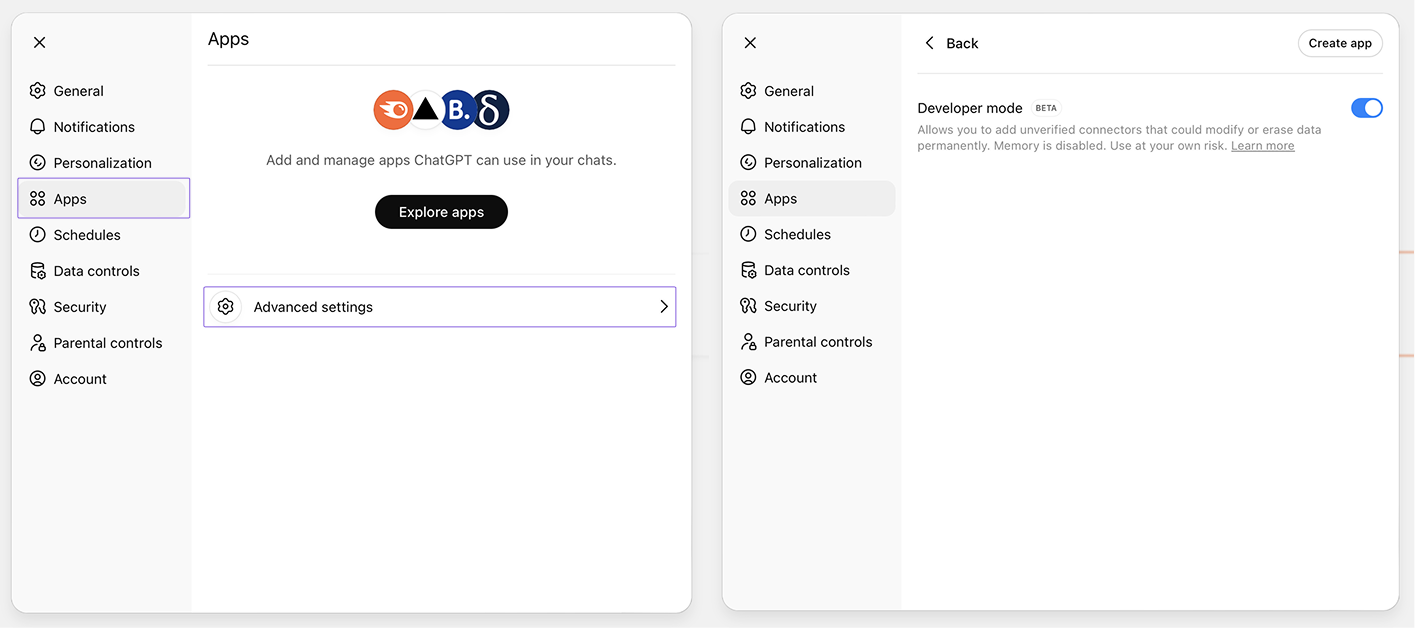
* In ChatGPT, click the '+' button on the left of the chat input > More > Add Source.
* Choose Add > Connect More.
* In the Integrations and App Connectors tab, scroll to the bottom and enable Developer Mode under "Advanced Settings".
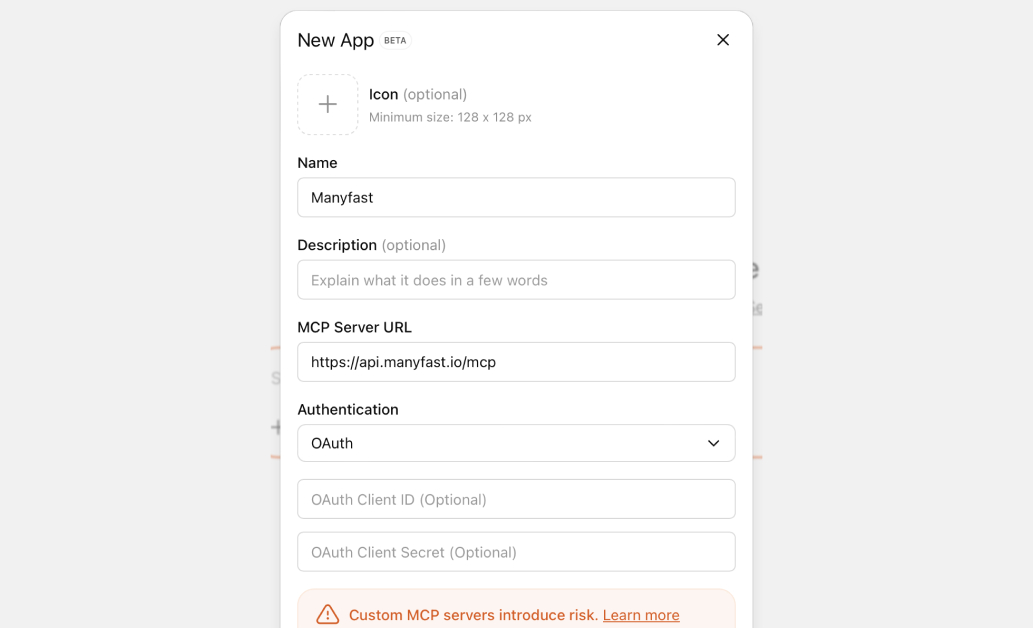
* Click the "Create" button at the top of Integrations and App Connectors.
* Enter the information as shown in the image and click "Create" to finish.
* MCP server URL:
Once setup is complete, you'll be redirected to the login page to connect to the MCP server.
{% endtab %}
{% tab title="Lovable" %}
**Lovable Setup**
{% hint style="info" %}
MCP connection is only available on the Lovable Business plan or higher.
{% endhint %}
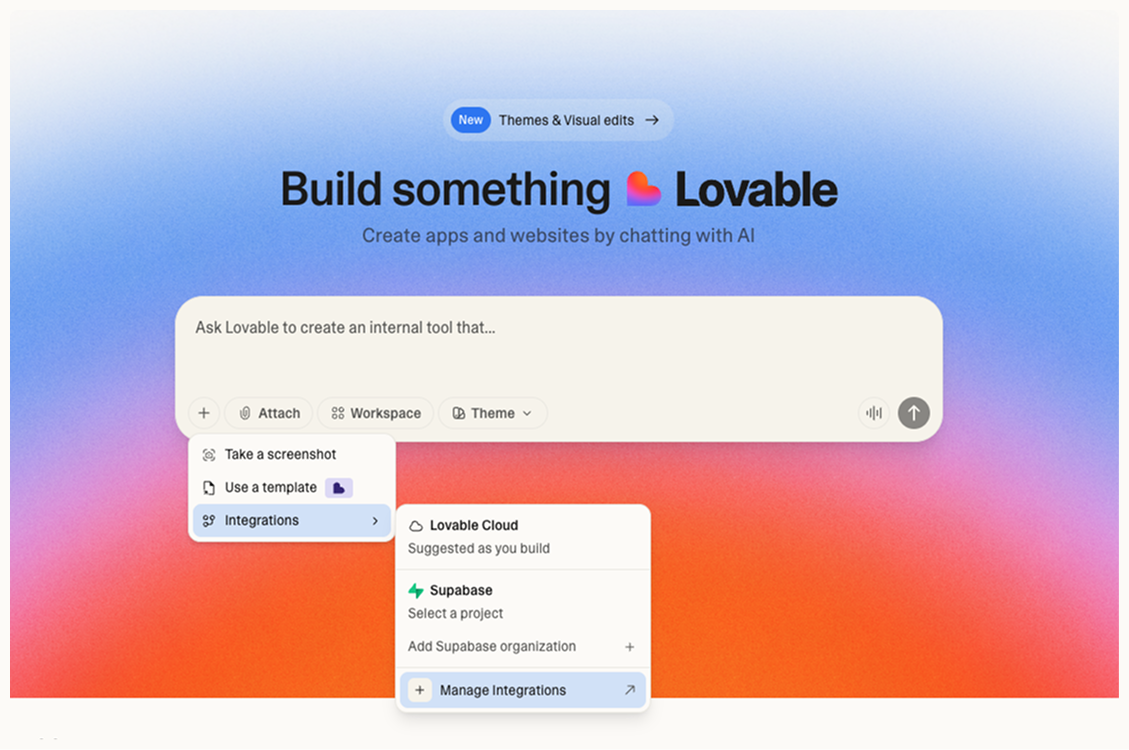
* Click the '+' button at the bottom left of the chat window > Integration > Manage Integrations.
* Click the 'Add' button at the bottom of the MCP server list.
* Enter the information as shown in the image and click 'Add Server' to finish.
* MCP server URL:
Once setup is complete, you'll be redirected to the login page to connect to the MCP server.
{% endtab %}
{% tab title="Antigravity" %}
**Antigravity Setup**
* Open the menu at the top right of Antigravity > select 'MCP Servers' > select 'Manage MCP Servers'.
* Click the 'View raw config' button.
* Paste the following content into the file that appears.
```
{
"mcpServers": {
"manyfast": {
"serverUrl": "https://api.manyfast.io/mcp/"
}
}
}
```
* When the link redirect popup appears as shown in the image, click confirm to proceed to the MCP server login screen.
{% endtab %}
{% endtabs %}
#### Logging In to the MCP Server
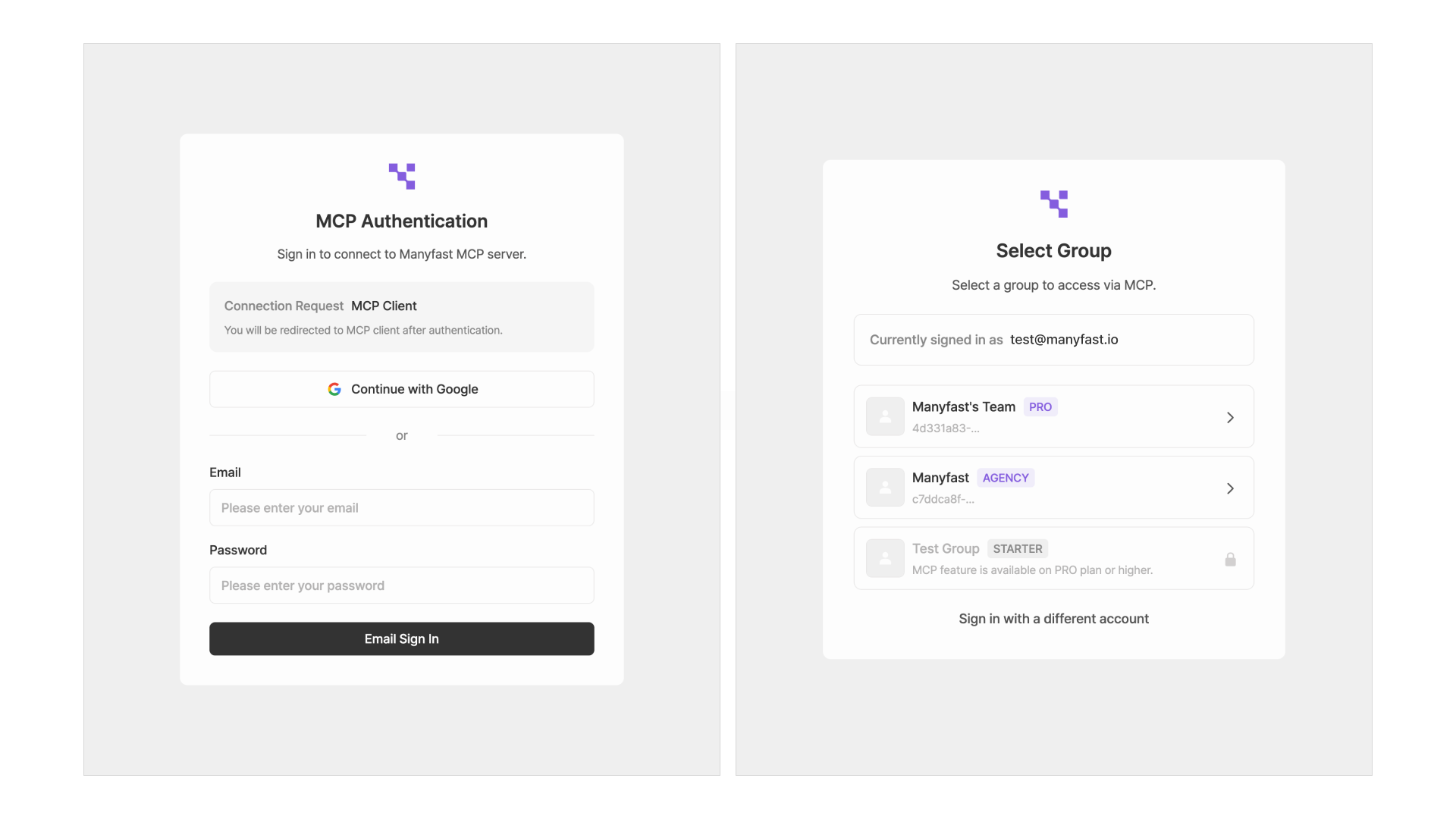
* When you enable the MCP server, you'll be prompted to log in to complete the connection.
* Once you've logged in with your Manyfast account, you can select the group to connect to the MCP server.