> For the complete documentation index, see [llms.txt](https://docs.manyfast.io/llms.txt). Markdown versions of documentation pages are available by appending `.md` to page URLs; this page is available as [Markdown](https://docs.manyfast.io/en/start/plan.md).
# Billing & Plan Changes
{% hint style="info" %}
Plans and credits are **applied at the Group level**.
{% endhint %}
## Paying for a Plan
{% stepper %}
{% step %}
#### Pick a Plan
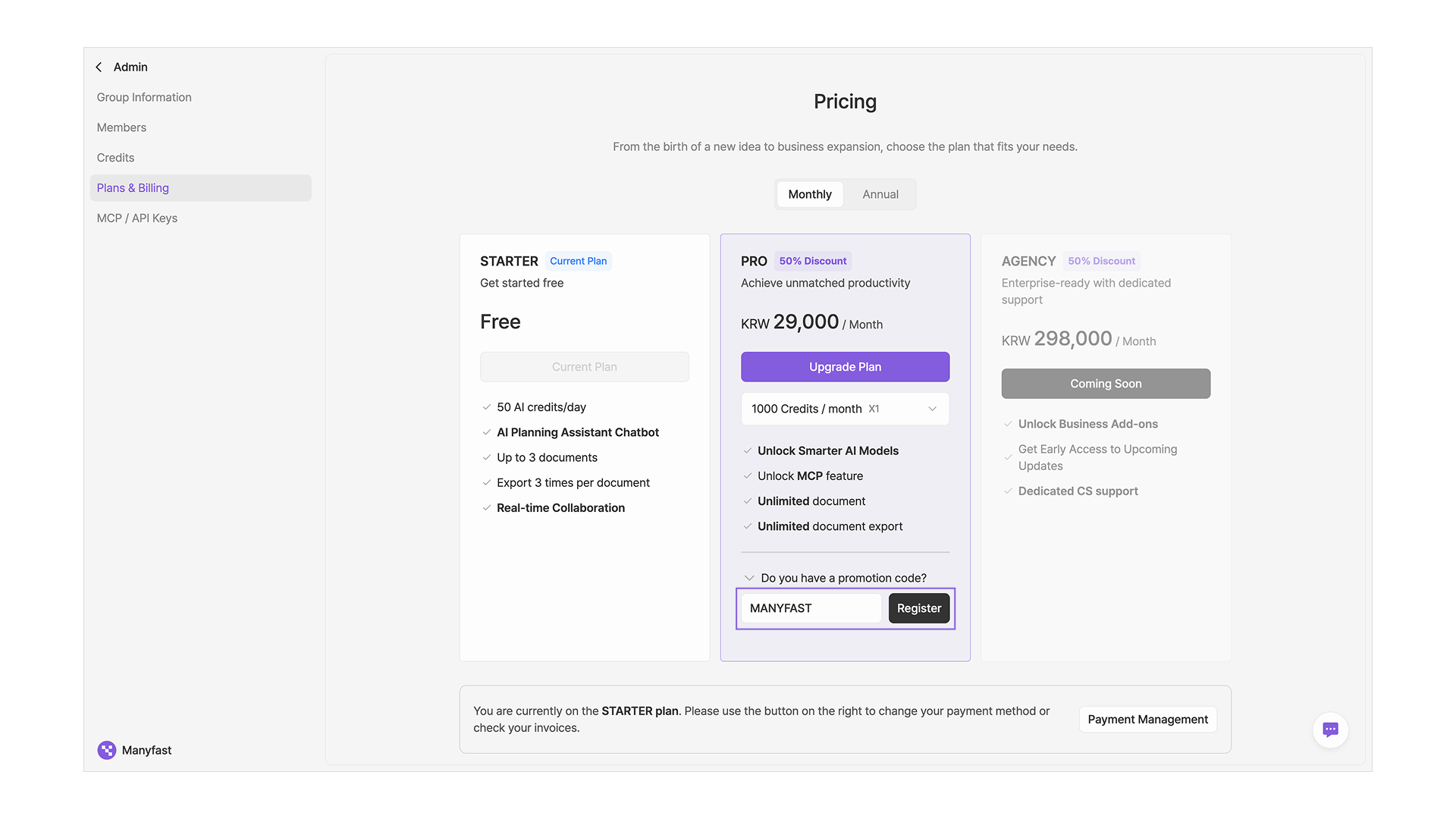
* From the home screen, click the **Plans & billing** menu in the left sidebar to see Plan information.
* Pick the Plan you want and upgrade.
* Plans differ in the features and number of credits they include.
* On the Pro Plan, you can choose how many credits you receive each cycle (1,000–5,000 credits).
* If you choose annual billing, you get the service at an additional discount.
{% endstep %}
{% step %}
#### Pay
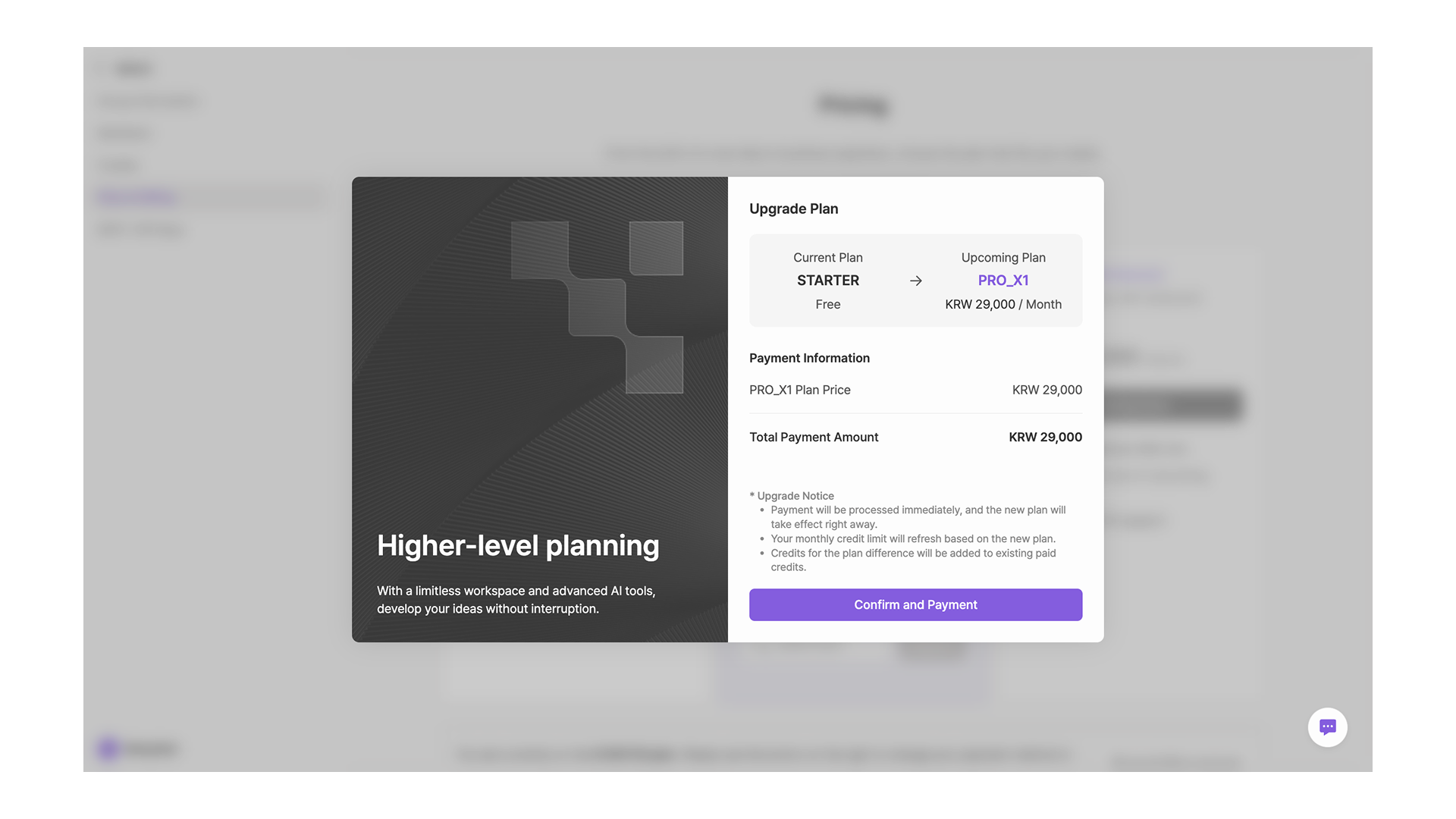
* Click the \[Upgrade Plan] button on the Plan you want to start the checkout process.
* Review the final amount in the payment details window, then click \[Confirm and pay].
* Once you register a payment method, the charge goes through immediately and your Group gets all the new Plan's benefits right away.
{% endstep %}
{% step %}
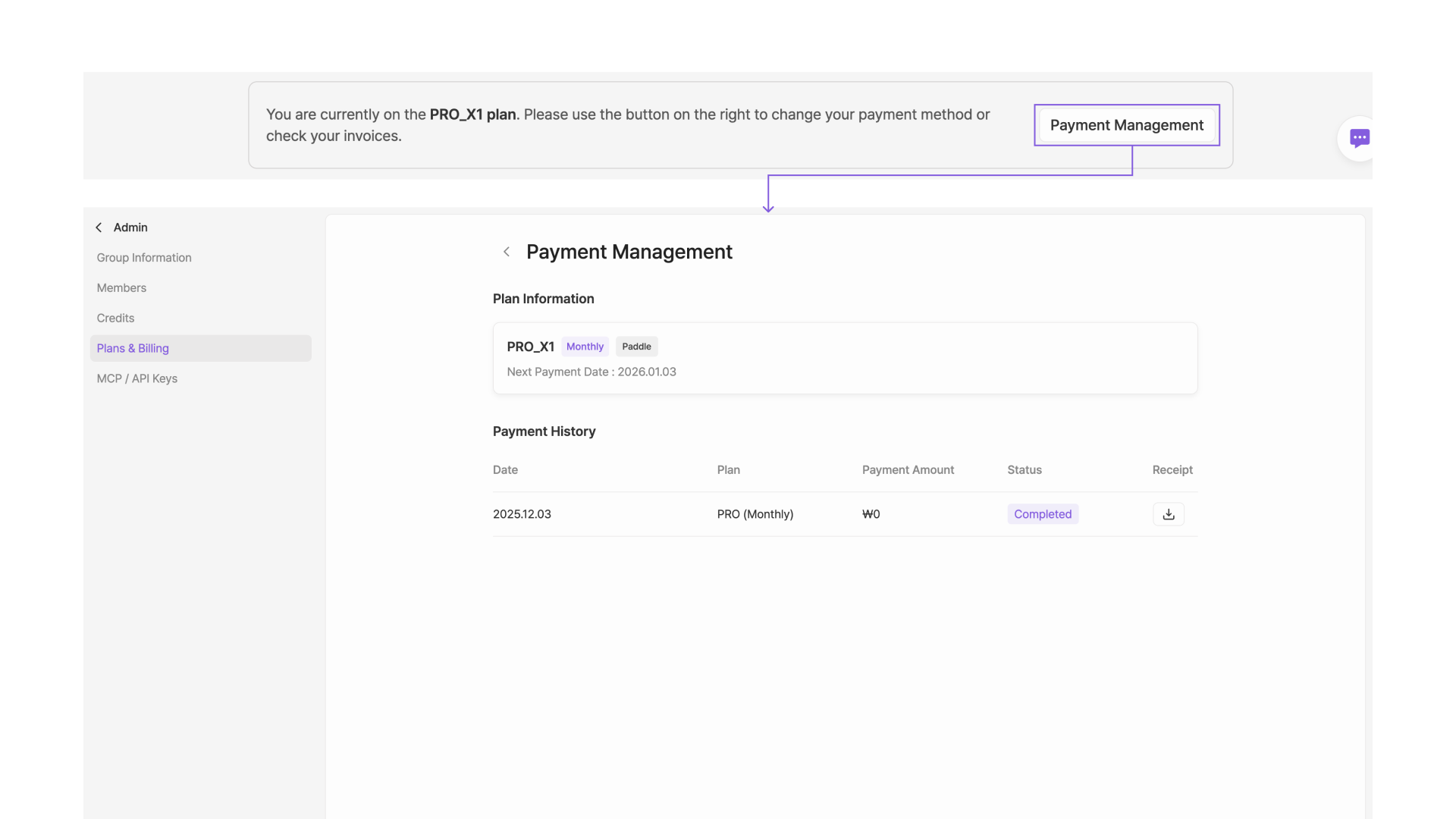
#### View billing history
* Click the **Billing management** button at the bottom of the "Plans & billing" modal to see your current Plan and billing history.
{% endstep %}
{% endstepper %}
## Applying a discount code
{% stepper %}
{% step %}
#### Pick a Plan and enter the code
* Pick the Plan that matches the discount code you have.
* Enter the code in the promo code field at the bottom and click **Apply**.
* If the code is valid, the checkout window opens right away.
* If the code is invalid, or doesn't match the Plan you selected, you'll see an error.
{% endstep %}
{% step %}
#### Pay
* Confirm the discounted amount in the checkout window, then register your payment method to complete the purchase.
{% endstep %}
{% endstepper %}
## Changing or canceling a Plan
{% stepper %}
{% step %}
#### Upgrade a Plan
* If you need more credits and a more powerful AI model, you can upgrade to a higher Plan immediately.
* From the Plan info screen, when you select a Plan above your current tier, the **Upgrade Plan** button becomes active.
* On upgrade, the difference between your current Plan and the new one is calculated and shown. When you click "Confirm and pay," **you'll be charged the prorated difference immediately**.
* As soon as the payment is complete, the new Plan's credit limit and all paid features take effect.
{% endstep %}
{% step %}
#### Downgrade or cancel a Plan
* If you want to stop using a paid Plan or move to a lower tier, you can request a downgrade.
* **Switching to the free (STARTER) Plan** has the same effect as canceling your Plan.
* In the confirmation popup, review the upcoming Plan and the change date, then click "Confirm and change" to complete the cancellation.
* When you downgrade, your current Plan stays active until the end of the billing period, and **starting from the next billing cycle, you'll be charged for the lower Plan**.
* Before the next billing cycle, you can **cancel the scheduled change** or switch to a different Plan.
{% endstep %}
{% endstepper %}
## Credits
Credits are the currency you need to use Manyfast's AI features.
* Credits are consumed each time you submit a prompt, and the amount is proportional to how much information is processed.
* Typical actions or conversations consume around 2–10 credits, but tasks that handle a lot at once or that attach files can use significantly more. Smarter AI models also consume more credits per call.
* Credits are shared by every Member of the Group.
#### Credit usage history
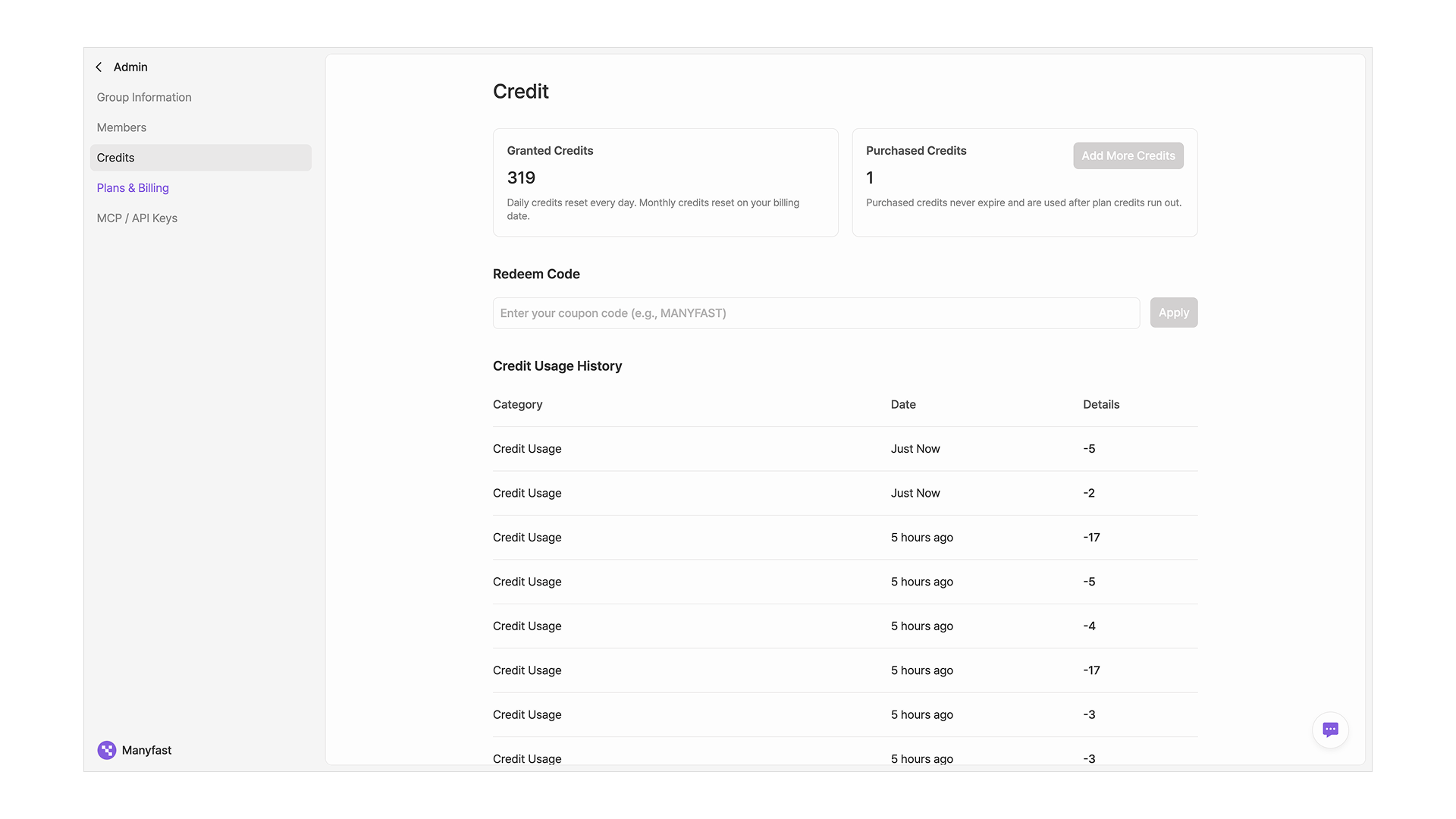
In the Admin page, click the \[Credits] tab. You'll see your total remaining credits along with detailed usage history broken down by date and item.
Credits come in two types: **granted credits** that come with your subscription Plan, and **purchased credits** that you buy separately as needed.
* Granted credits: the base credits provided regularly based on your current Plan.
* Free Plan (STARTER): 50 credits are granted every day. Any unused credits are reset at midnight each day and recharged fresh.
* Paid Plan (PRO): monthly credits are granted on your billing date and reset at the end of each billing cycle.
* Purchased credits: credits you buy on top of your Plan and keep in your account.
* Note: the option to purchase additional credits is currently in preparation. We're working to make it available as soon as possible.
* If your account has both types of credits, the granted credits — which have a fixed expiration — are used first.