> For the complete documentation index, see [llms.txt](https://docs.manyfast.io/llms.txt). Markdown versions of documentation pages are available by appending `.md` to page URLs; this page is available as [Markdown](https://docs.manyfast.io/en/start/member.md).

# Invite & Manage Members

You can easily share your finished planning deliverables for review, and join other Groups as a Member to collaborate together.

{% stepper %}
{% step %}

#### Invite a Member

<figure><img src="/files/GpOG3Mqyi7H0q7Rvg75q" alt=""><figcaption></figcaption></figure>

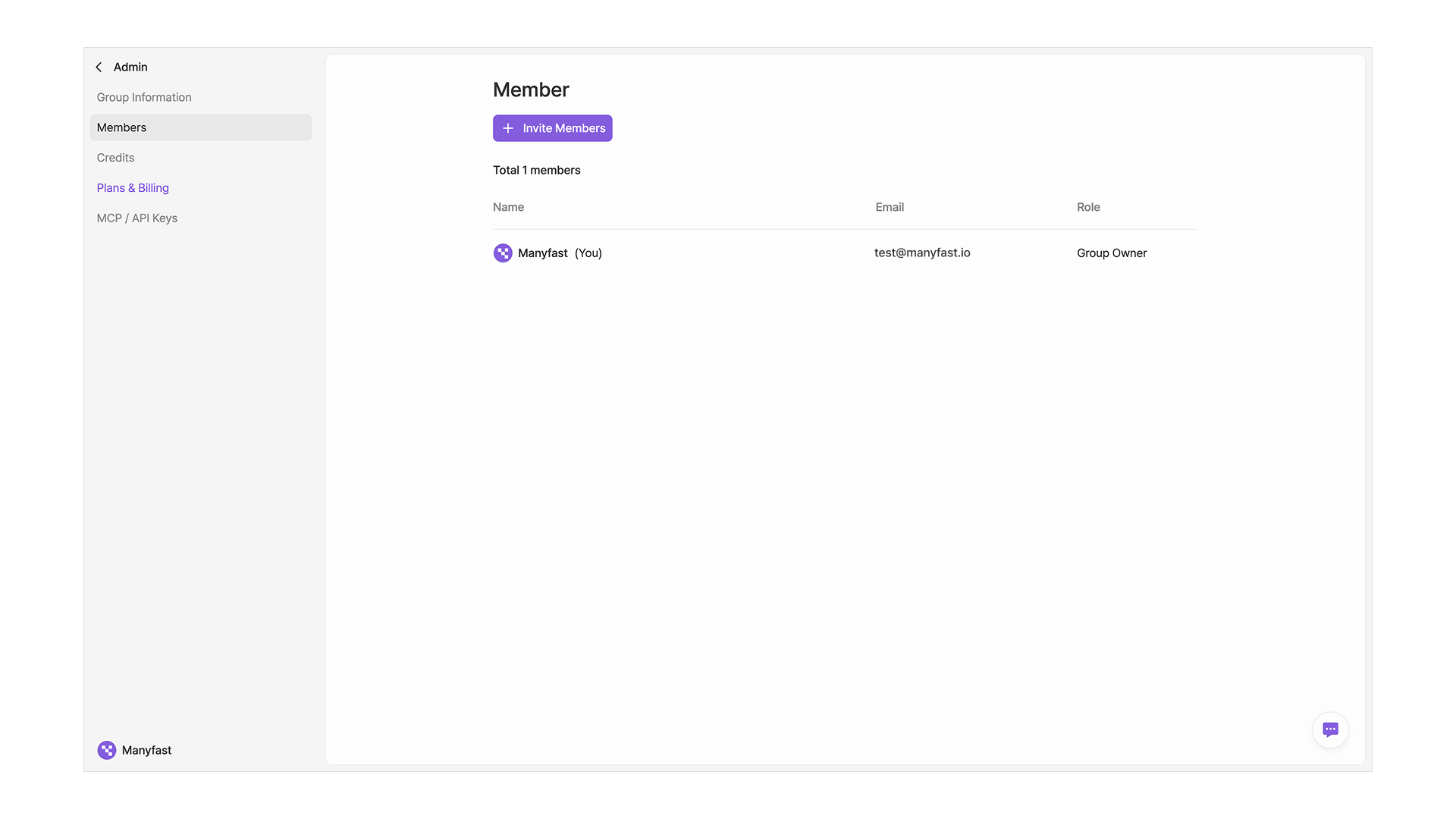
* To invite a new Member to your Group, go to the **Admin** page in the left sidebar and click the **Members** menu.
* Click the **\[+ Invite Members]** button to open the invitation modal.
* Only users with the **Admin** role or higher in the Group can send invitations. ([See Member permissions in detail](#undefined-4))

<figure><img src="/files/Yo2J61zlLGYV3955jhMD" alt=""><figcaption></figcaption></figure>

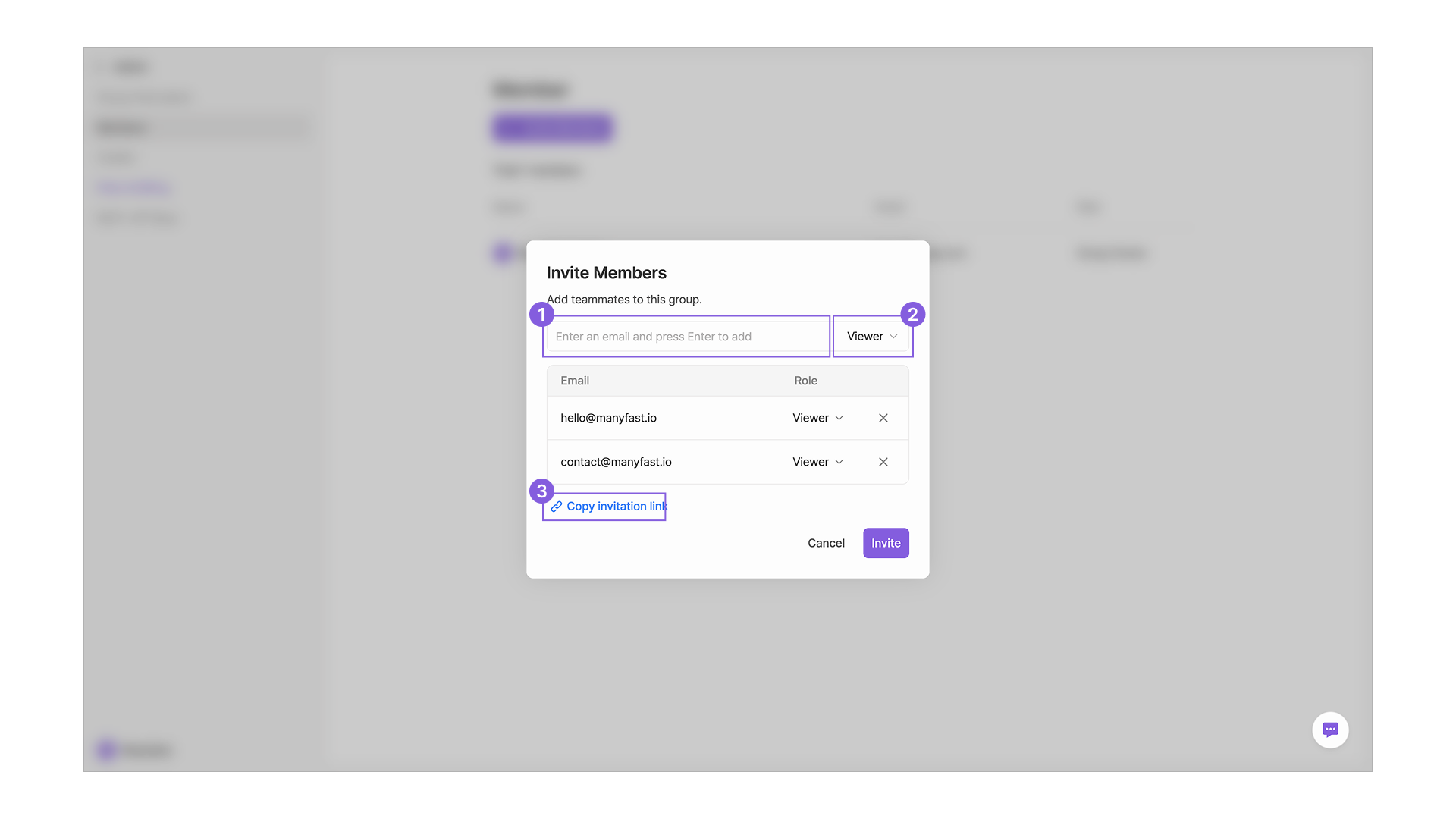
* **Invite by email:**
  * Type the email address of the Member you want to invite into the input field, set their permission, and press **Enter**.
  * Click the **\[Invite]** button at the bottom and an invitation email will be sent to that address immediately.
  * Validity: For security, invitation emails are valid for up to 7 days.
  * On the free (STARTER) Plan, you can only add Members with **Viewer** permission.
* **Share an invite link:**
  * Click **\[Copy Invitation link]** and share the copied link with your teammates.
  * As soon as someone opens the link, they can join the Group.
  * Anyone who joins through an invite link is given **Viewer** permission by default.
    {% endstep %}

{% step %}

#### Accept an invitation

Invited Members can accept the invitation and start collaborating through email, an invite link, or the in-app notification inbox.

* Open the Manyfast Group invitation email in your inbox.
* Click the **\[Accept Invitation]** button in the email body to go to the confirmation page.
* Or click the invite link (URL) you received to open it directly.

<figure><img src="/files/TlCxwM8To3dQ0FI9ceEx" alt=""><figcaption></figcaption></figure>

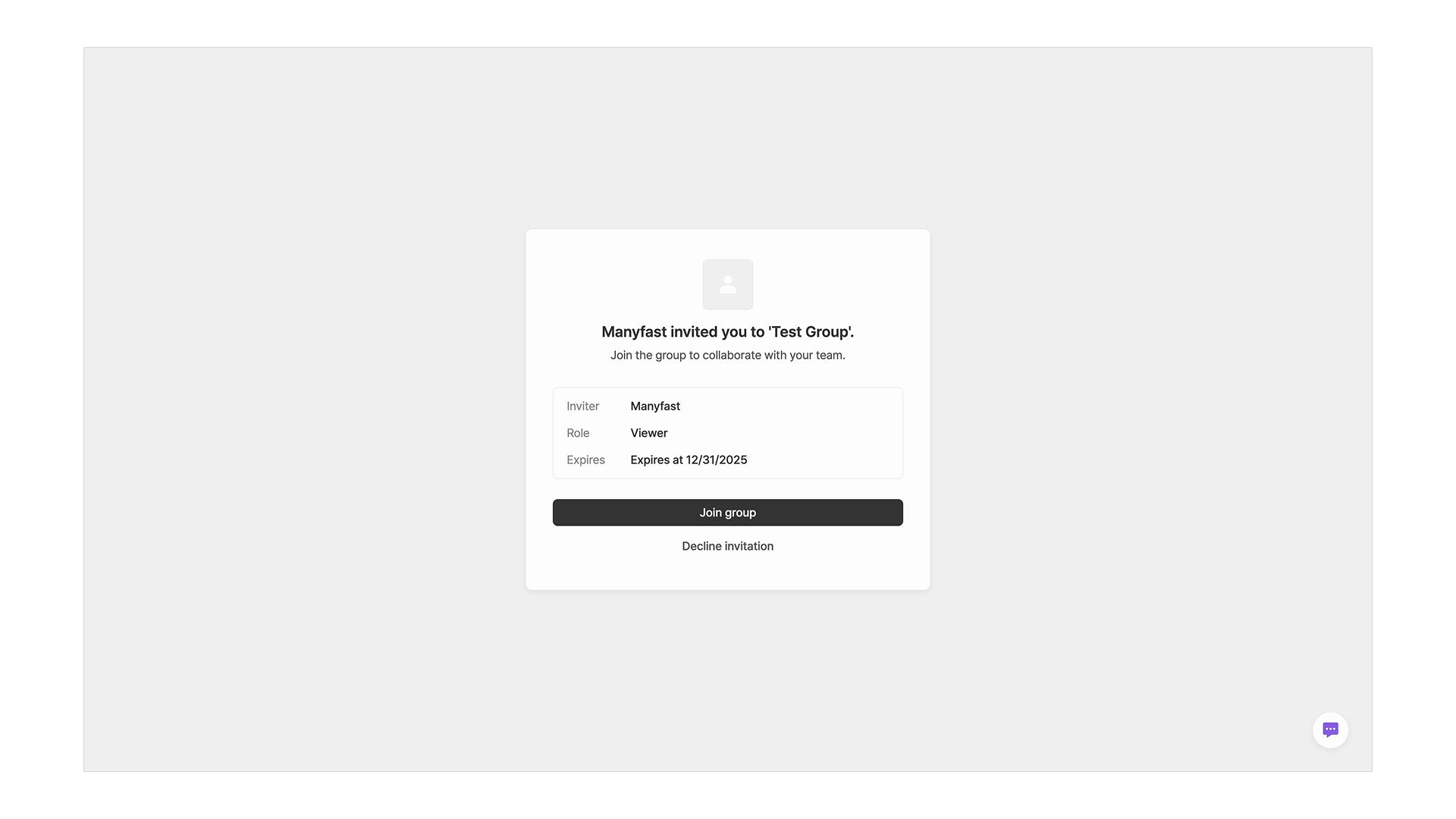
* Review the inviter, permission, and expiration date on the screen, then click **\[Join Group]** to be added as a Group Member.
* If you don't have a Manyfast account yet, you'll need to sign up first.
* If you're already using Manyfast, you'll see a number badge on the **\[Notifications]** icon in the sidebar.
* Open the notification list to view the invitation, then click **\[Accept]** or **\[Decline]** to respond on the spot.
  {% endstep %}

{% step %}

#### Manage Members

<figure><img src="/files/loykzyssB3Pm1m8FRrHL" alt=""><figcaption></figcaption></figure>

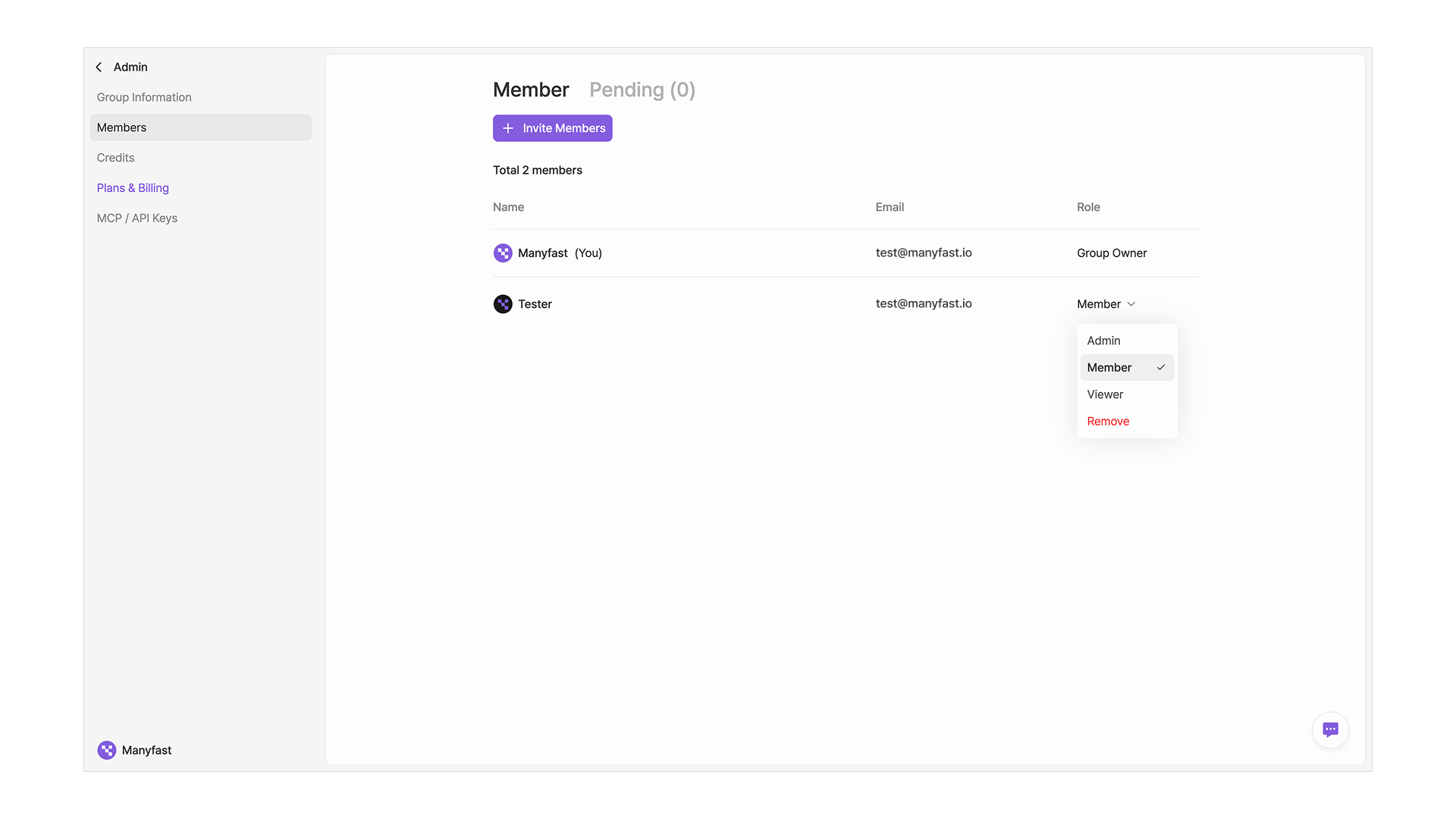
* On the **Members** page, you can see the list of Members in the Group and their permissions.
* If you have the **Admin** role or higher in the Group, you can change Member permissions or **remove (kick out)** Members.

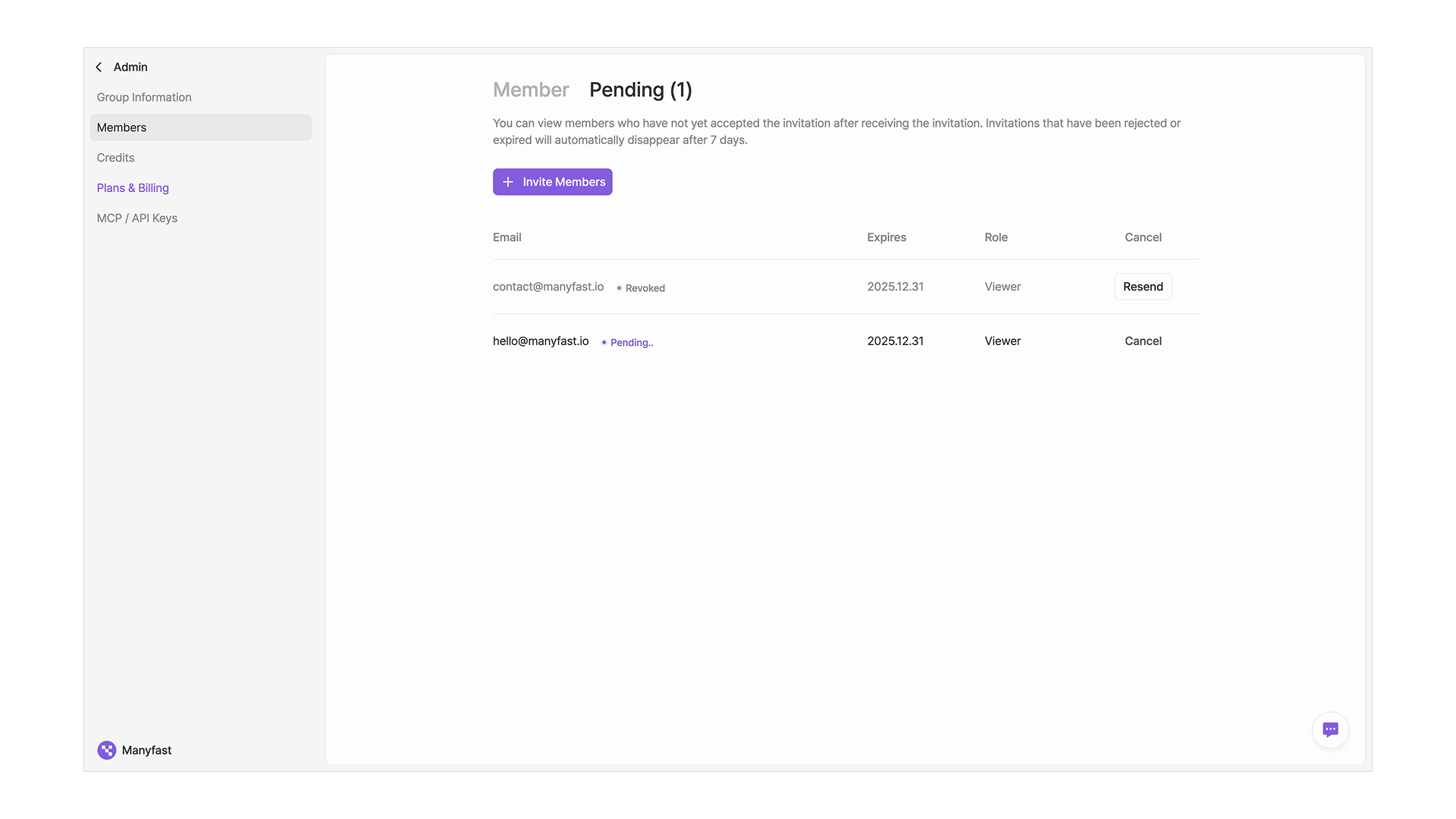
**Invitation management**

<figure><img src="/files/lM0JhzO5pC8HuDOmXBOu" alt=""><figcaption></figcaption></figure>

* If you have the **Admin** role or higher in the Group, you can view the history of invitations you've sent.
* You can check the status of each invitation and **cancel** it or **re-invite** the person before it expires.
  {% endstep %}

{% step %}

#### Member permissions

<table><thead><tr><th width="158.03515625">Name</th><th width="140.93359375">Alias</th><th>Description</th></tr></thead><tbody><tr><td>OWNER</td><td>Group Owner</td><td>- All permissions in the Group<br>- Permission to assign Group Member admins<br>- Permission to manage Group billing</td></tr><tr><td>ADMIN</td><td>Admin</td><td>- Permission to edit Group info, invite Members, and change permissions<br>- Permission to create, edit, and delete Projects in the Group<br>- Permission to use MCP</td></tr><tr><td>MEMBER</td><td>Member</td><td>- Permission to create, edit, and delete Projects in the Group</td></tr><tr><td>VIEWER</td><td>Viewer</td><td>- Permission to view Projects in the Group</td></tr></tbody></table>
{% endstep %}
{% endstepper %}


---

# Agent Instructions
This documentation is published with GitBook. GitBook is the documentation platform designed so that both humans and AI agents can read, navigate, and reason over technical content effectively. Learn more at gitbook.com.

## Querying This Documentation
If you need additional information that is not directly available in this page, you can query the documentation dynamically by asking a question.

Perform an HTTP GET request on the current page URL with the `ask` query parameter:

```
GET https://docs.manyfast.io/en/start/member.md?ask=<question>
```

The question should be specific, self-contained, and written in natural language.
The response will contain a direct answer to the question and relevant excerpts and sources from the documentation.

Use this mechanism when the answer is not explicitly present in the current page, you need clarification or additional context, or you want to retrieve related documentation sections.
