> For the complete documentation index, see [llms.txt](https://docs.manyfast.io/llms.txt). Markdown versions of documentation pages are available by appending `.md` to page URLs; this page is available as [Markdown](https://docs.manyfast.io/en/plan/ia.md).
# Information Architecture (IA)
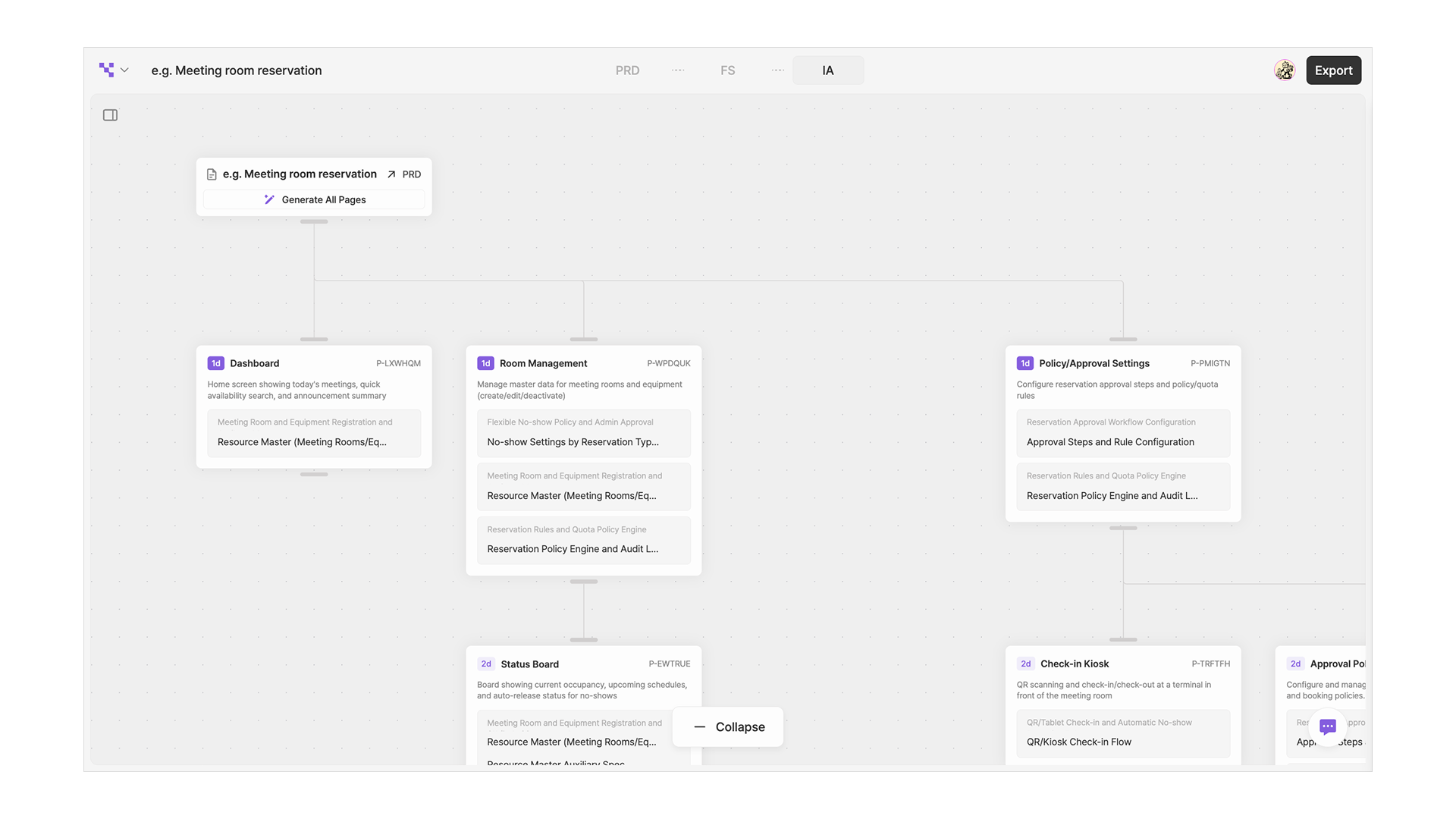
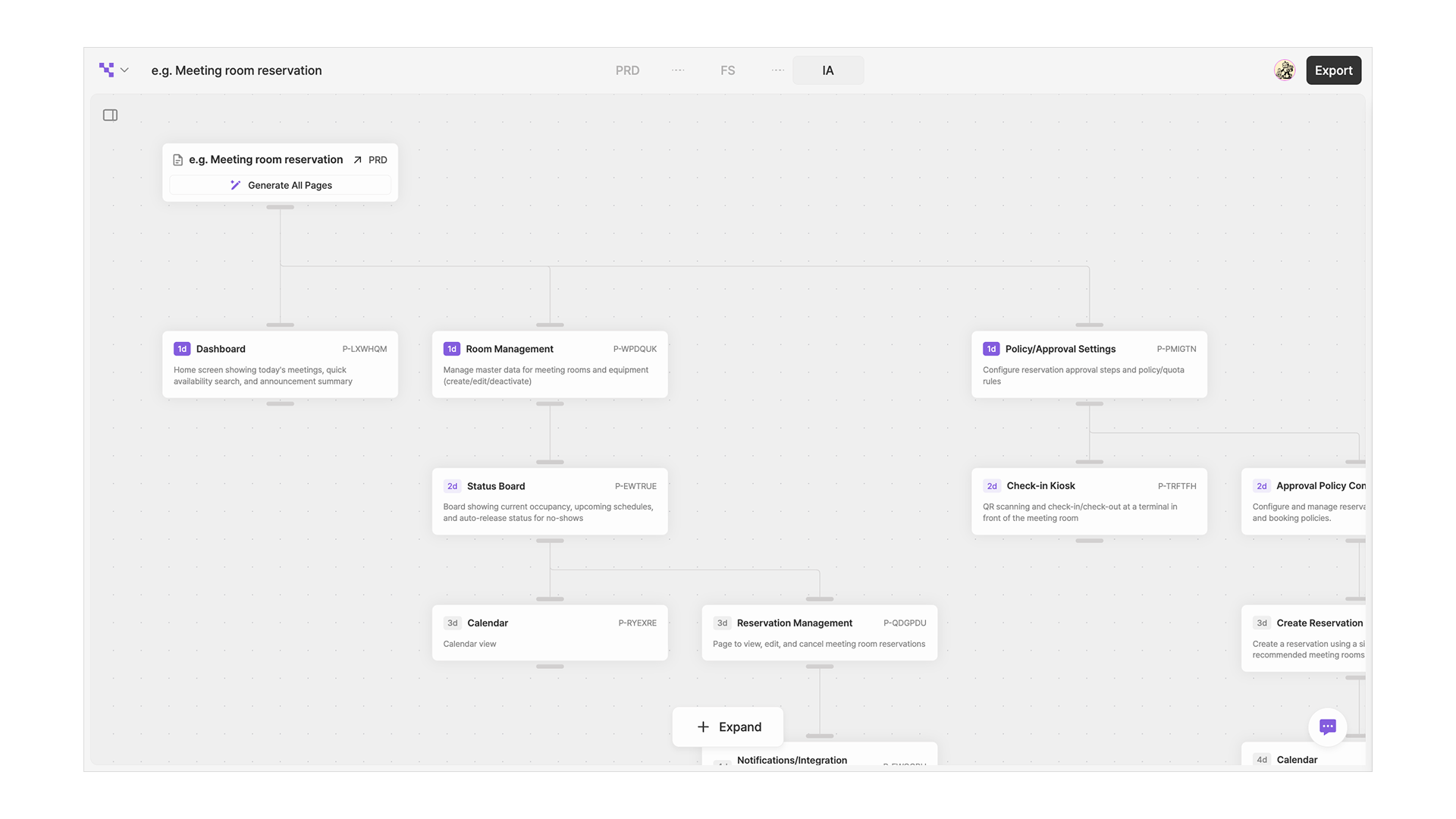
The Information Architecture (IA) is a document that hierarchically organizes and visualizes the pages within your service. It connects to the 'Specifications' defined in the Functional Specification, and designs the paths users will actually take to explore the service.
## **1. Understanding the Structure**
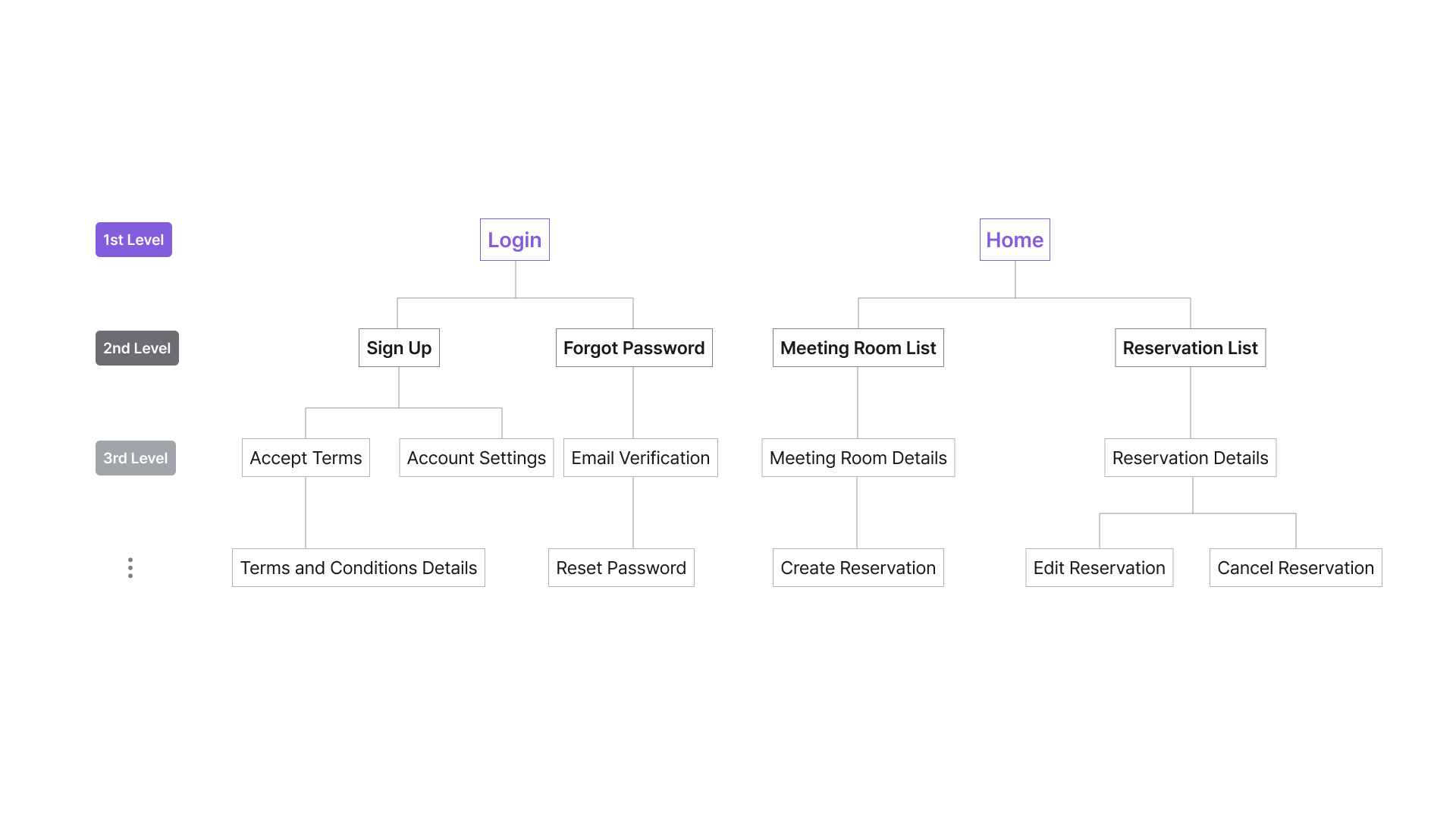
The Information Architecture is organized around **pages**. Pages are divided into a parent–child structure (depth), and within each page you can attach the **Specifications** defined in the Functional Specification.
### **Page**
A unit of navigation within the product. Each page can have a name and a description.
e.g. "Dashboard", "Project management", "Settings"
### **Page Depth**
The parent–child relationship between pages.
e.g.
* 1st depth: Home, Projects, Settings
* 2nd depth: Projects > Member management
* 3rd depth: Projects > Member management > Invite
## **2. Switching Views**
The Information Architecture can be switched between **Detailed view** and **Simple view**.
### **Detailed View**
In addition to the page name, the description and connected Specifications are shown together. Useful when you want to review the structure or verify connection relationships.
### **Simple View**
Only the page names are shown, so you can grasp the overall structure at a glance. Use this when you just want to quickly check the page hierarchy (depth).
## **3. Adding / Editing Pages**
#### Editing pages and linking Specifications
1. When you select a page item, **'+' buttons** appear on the left, right (same depth), and bottom (child) sides — use them to add new pages.
2. Select a page item and click the **pencil icon** in the top toolbar to enter edit mode. Or **double-click** the item to edit directly.
1. In edit mode, you can edit the page's name and description.
2. Deleting also removes child pages, so use this with caution.
3. Select a page item and click the **'Link Specification' button** that appears to open the link modal.
4. There you can select a 'Specification' defined in the Functional Specification and link it to that page.
5. Hover over an already-linked Specification and an '×' button appears on the right; click it to unlink.
#### Setting depth by connecting pages
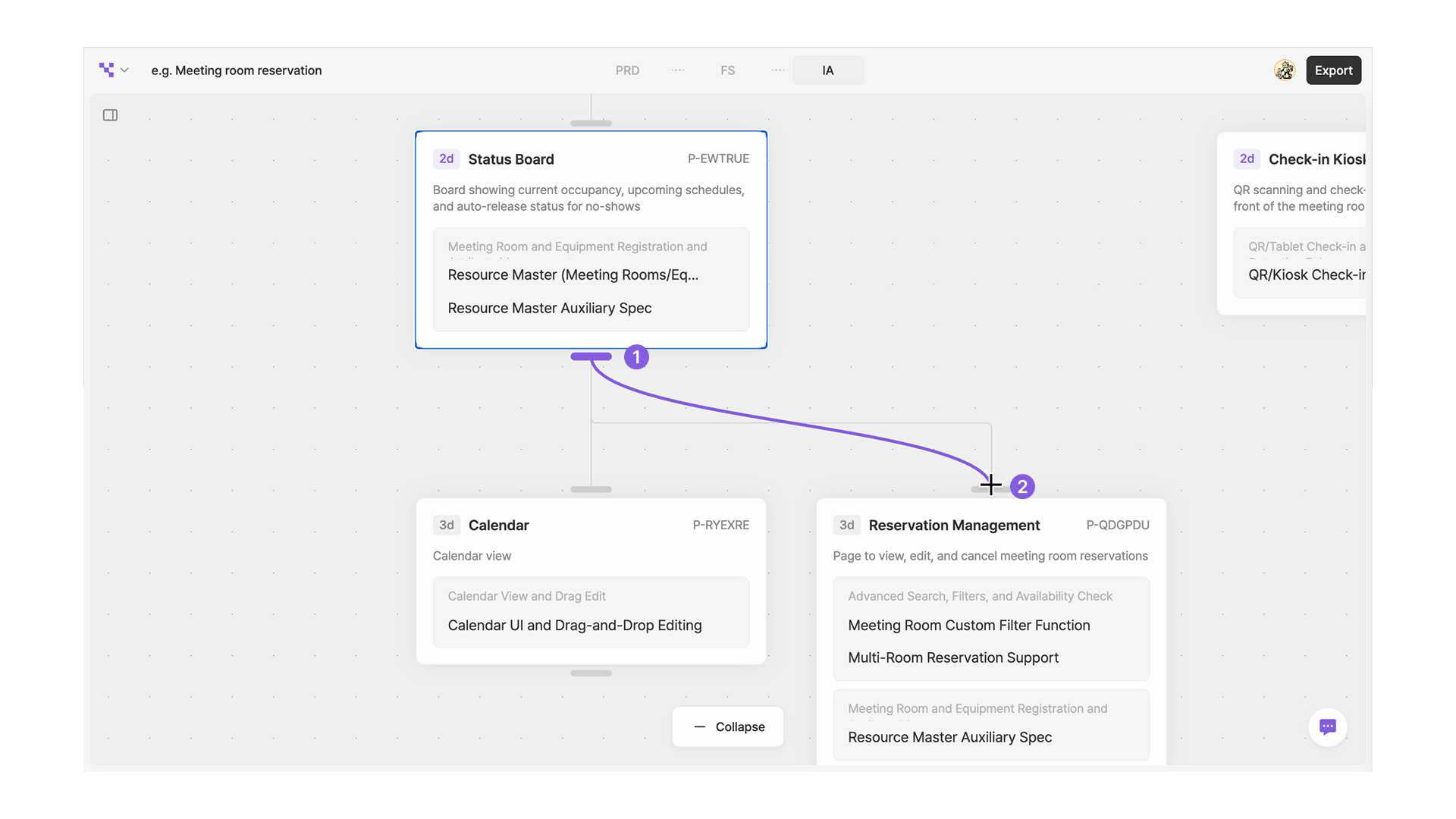
In the Information Architecture, you can set a page's hierarchy (depth) by **connecting items directly**. Between two page items, drag from the bottom handle of item A (1) to the top handle of item B (2) — item B then moves to become a child page of item A.
## 4. Ask AI
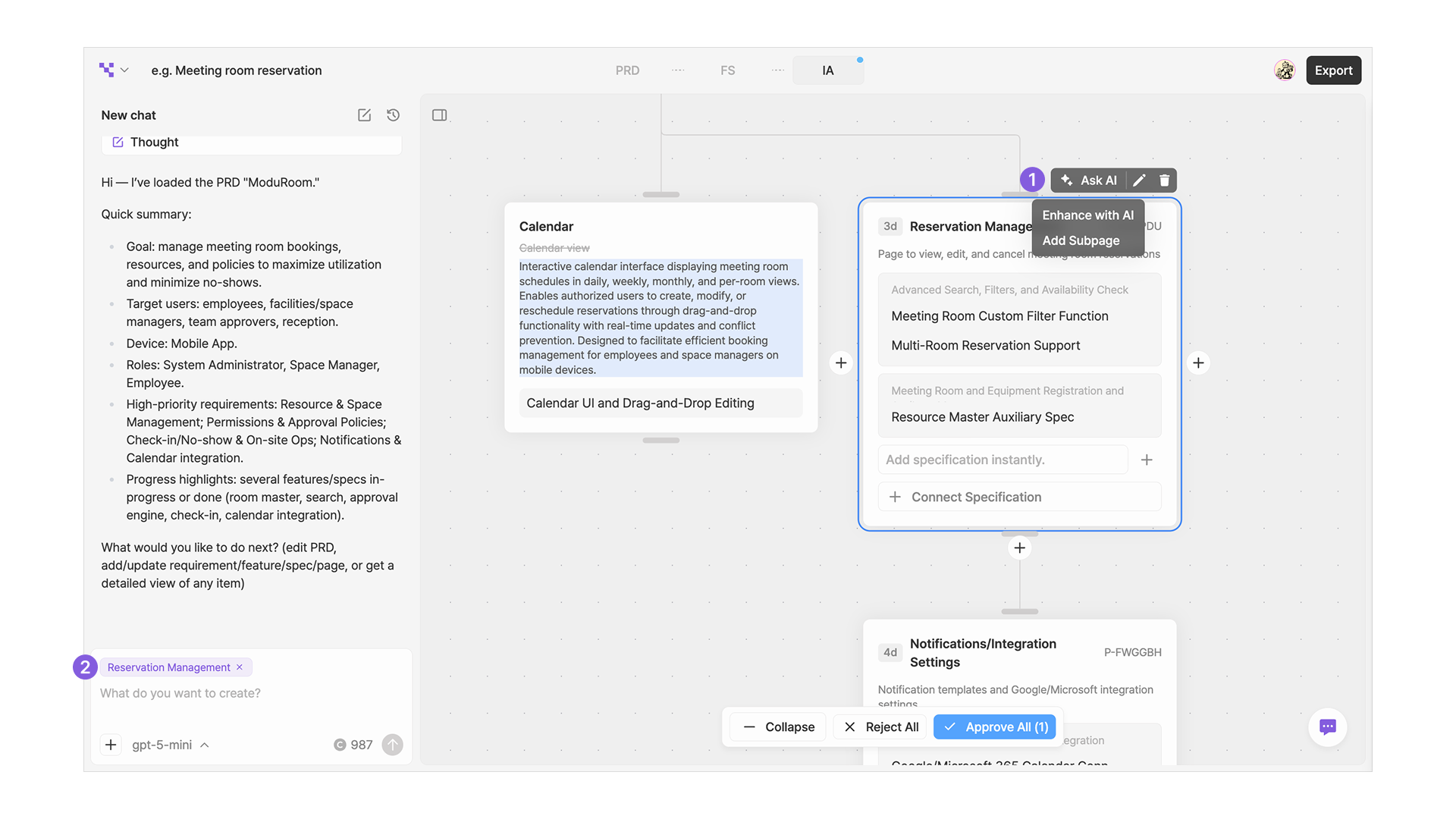
1. When you select a page, an **Ask AI** button appears at the top. You can ask the AI to expand the name or description of the selected page, or to automatically generate child pages at the next depth.
2. The AI's changes are reflected immediately within the architecture, and you can selectively **approve / reject** specific items using the **check button** above each item.
3. While an item is selected, open chat to **send instructions directly to the AI**, linked to that item.
.png?alt=media)